Understanding Peripheral Data Cables
Peripheral data cables connect laptops and notebooks to external devices, enabling data transfer, charging, and other functionalities. The right cables are crucial for optimal performance and reliability. For instance, using the correct cable can ensure that data is transferred at the maximum possible speed, reducing the time it takes to complete tasks. To understand the importance of peripheral data cables, let’s consider a few examples. A USB 3.0 cable can transfer data at speeds of up to 5 Gbps, while a USB 4 cable can transfer data at speeds of up to 40 Gbps. This significant difference in data transfer speed can greatly impact productivity and efficiency. To illustrate, transferring a 100 GB file using a USB 3.0 cable would take around 2.5 minutes, whereas using a USB 4 cable would take approximately 0.3 minutes.
When selecting peripheral data cables, it’s essential to consider the type of devices you want to connect. Different devices require different types of cables, and using the wrong cable can result in reduced performance or even damage to the devices. For example, if you want to connect your laptop to an external display, you’ll need an HDMI or DisplayPort cable. On the other hand, if you want to transfer data between devices, a USB cable may be more suitable.
Types of Peripheral Data Cables
- USB Cables: Available in different versions (USB 2.0, USB 3.0, USB 4) with varying data transfer speeds and charging capabilities. For example, USB 2.0 cables are suitable for low-speed applications such as charging and connecting keyboards, while USB 4 cables are ideal for high-speed applications like data transfer and display output. USB cables are widely used for connecting devices such as flash drives, hard drives, and smartphones.
- USB-C Cables: The latest universal standard for power and data transfer, offering high-speed data transfer, fast charging, and versatility. USB-C cables can be used for a variety of purposes, including data transfer, charging, and display output. They are also reversible, making them more convenient to use.
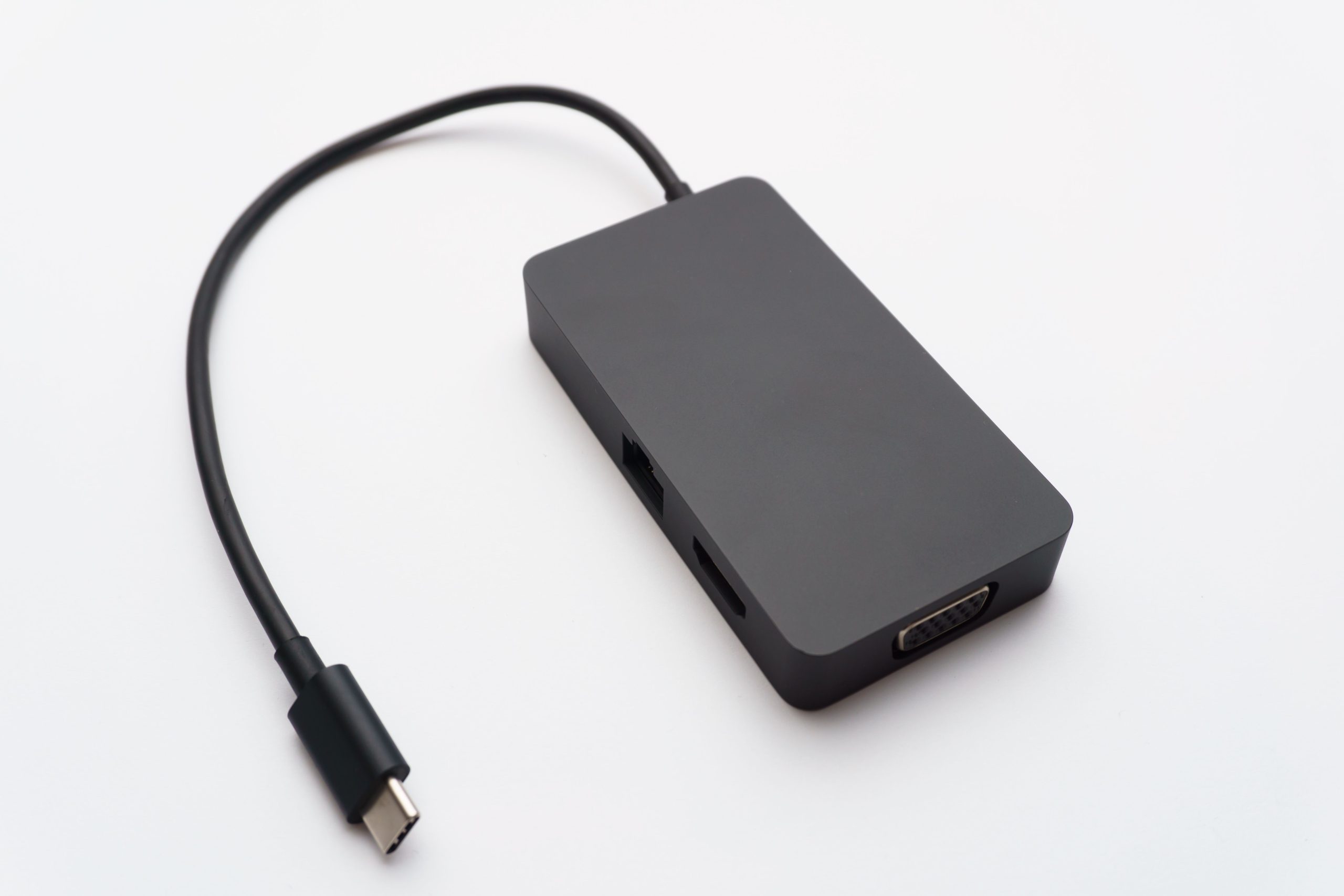
- OTG Adapters and Converters: Enable laptops and notebooks to connect to USB flash drives, hard drives, headphones, keyboards, and mice. OTG adapters and converters are useful for expanding the connectivity options of laptops and notebooks. For example, an OTG adapter can allow you to connect a USB flash drive to your laptop, even if it doesn’t have a traditional USB port.
- HDMI Cables: Used to connect laptops and notebooks to external displays, offering high-quality video and audio transmission. HDMI cables are commonly used for presentations, gaming, and entertainment. They are available in different versions, including HDMI 1.4, HDMI 2.0, and HDMI 2.1, each with its own set of features and capabilities.
- DisplayPort Cables: Used to connect laptops and notebooks to external displays, offering high-quality video transmission and multi-monitor support. DisplayPort cables are ideal for applications that require high-resolution video output, such as gaming and video editing. They are also available in different versions, including DisplayPort 1.4 and DisplayPort 2.0.
| Cable Type | Data Transfer Speed | Application |
|---|---|---|
| USB 3.0 | Up to 5 Gbps | Data transfer, charging |
| USB 4 | Up to 40 Gbps | Data transfer, charging, display output |
| HDMI 2.0 | Up to 18 Gbps | Video and audio transmission |
| HDMI 2.1 | Up to 48 Gbps | Video and audio transmission |
| DisplayPort 1.4 | Up to 32.4 Gbps | Video transmission, multi-monitor support |
| DisplayPort 2.0 | Up to 80 Gbps | Video transmission, multi-monitor support |
Choosing the Right Peripheral Data Cables
When selecting peripheral data cables, consider factors such as data transfer speed, compatibility, durability, cable length, shielding, and certification. Here are some steps to follow:
- Data Transfer Speed: Choose cables that support high-speed data transfer to minimize transfer times and enhance overall performance. For example, if you need to transfer large files frequently, consider using USB 4 or DisplayPort cables. Check the specifications of your devices to determine the required data transfer speed.
- Compatibility: Ensure that the cables are compatible with your laptop or notebook, as well as the external devices you want to connect. Check the specifications of your devices to determine the required cable type. For instance, if your laptop has a USB-C port, you’ll need a USB-C cable to connect it to a USB-C device.
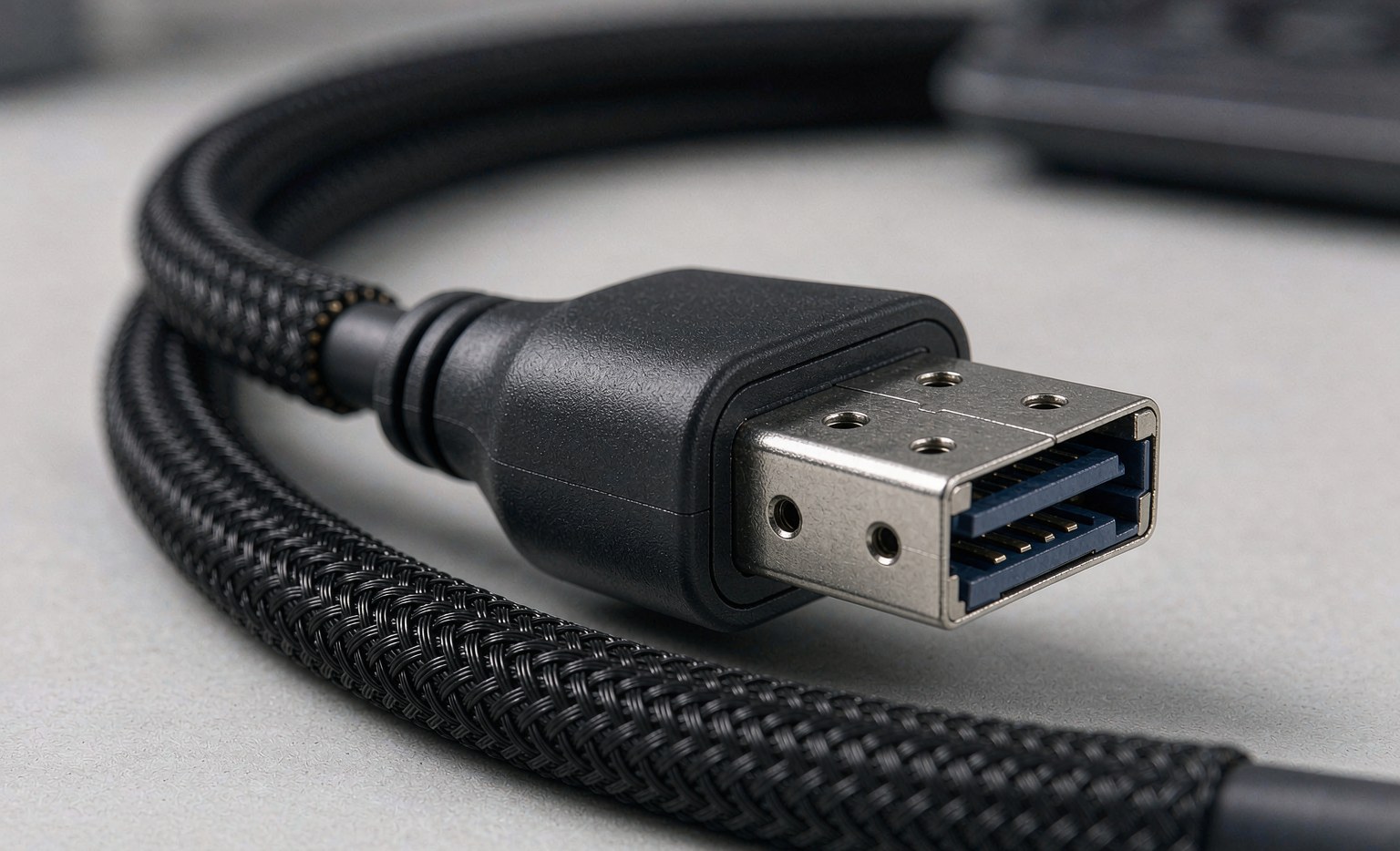
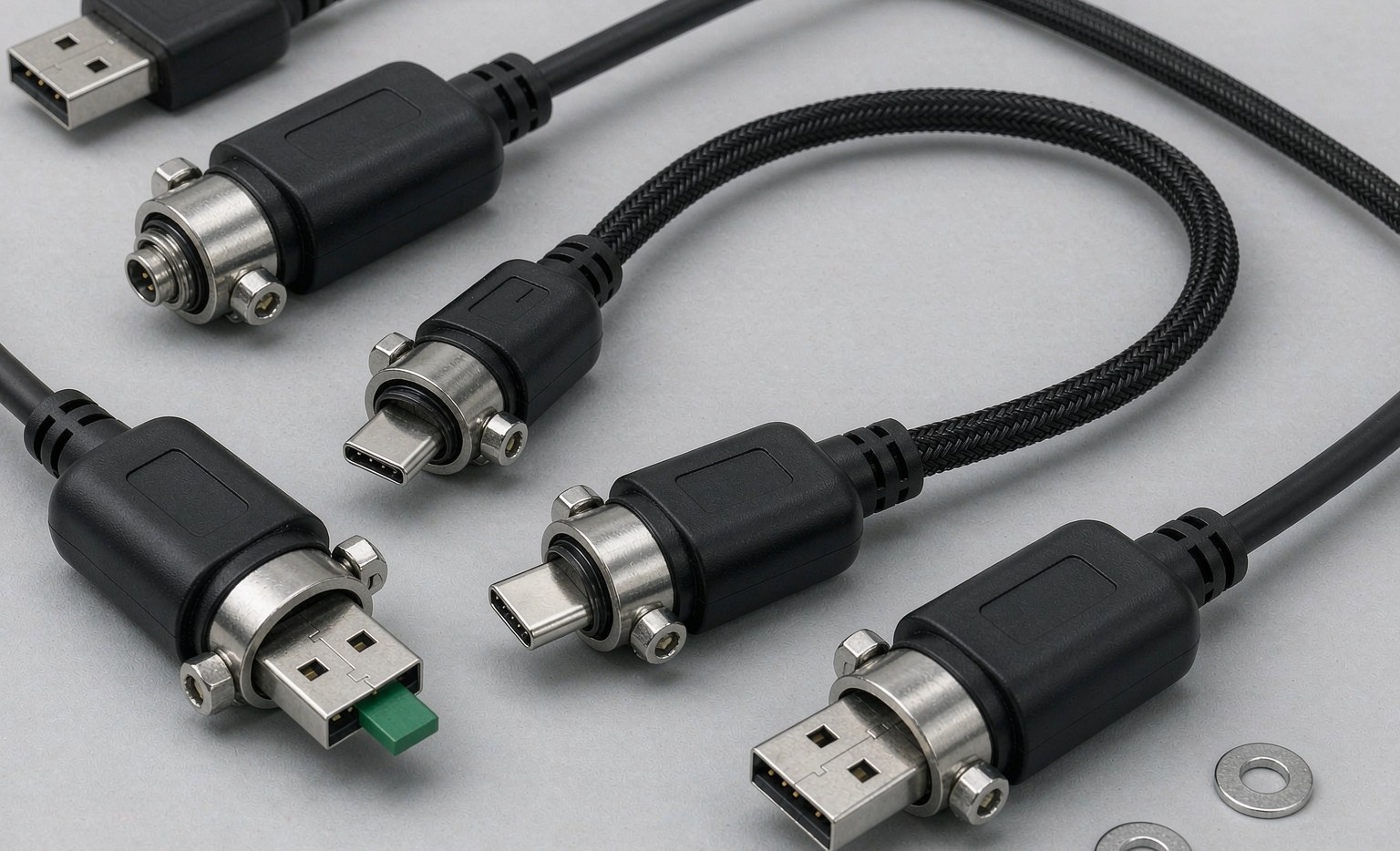
- Durability: Opt for cables with durable construction and high-quality materials to withstand regular use and minimize the risk of damage. Look for cables with reinforced connectors and braided shielding. Avoid cables with signs of wear or damage, as they can compromise performance and reliability.
- Cable Length: Choose cables with the appropriate length to suit your needs. Longer cables may be more convenient, but they can also be more prone to signal degradation. Consider using cables with the right length to minimize clutter and improve airflow.
- Shielding: Consider cables with shielding to reduce electromagnetic interference (EMI) and ensure reliable data transfer. Shielding can help to protect your data from interference and ensure that it is transmitted securely.
- Certification: Look for cables that are certified by reputable organizations, such as USB-IF or DisplayPort Consortium. Certification ensures that the cables meet certain standards for performance and reliability.
Frequently Asked Questions
- Q: What is the difference between USB 3.0 and USB 4?
- A: USB 4 offers faster data transfer speeds (up to 40 Gbps) and supports display output, while USB 3.0 has slower data transfer speeds (up to 5 Gbps) and is primarily used for data transfer and charging.
- Q: Can I use a USB-C cable for display output?
- A: Yes, USB-C cables can be used for display output, but they must support Alternate Mode (Alt Mode) or DisplayPort over USB-C. Check the specifications of your devices to determine if they support Alt Mode or DisplayPort over USB-C.
- Q: How do I ensure that my cables are durable?
- A: Look for cables with durable construction, high-quality materials, and reinforced connectors. Avoid cables with signs of wear or damage. Regularly inspect your cables for signs of wear or damage, and replace them if necessary.
- Q: What is the difference between HDMI and DisplayPort?
- A: HDMI and DisplayPort are both used for video and audio transmission, but they have different capabilities and applications. HDMI is commonly used for consumer electronics, while DisplayPort is commonly used for computer monitors and other professional applications.
- Q: Can I use a DisplayPort cable for HDMI output?
- A: No, DisplayPort cables are not compatible with HDMI output. However, you can use an adapter or converter to convert DisplayPort to HDMI.
Benefits of High-Quality Peripheral Data Cables
High-quality peripheral data cables offer numerous benefits, including enhanced performance, increased productivity, reduced maintenance, improved compatibility, and enhanced security.
- Enhanced Performance: High-quality cables ensure reliable data transfer and charging, minimizing the risk of errors and downtime. For example, using high-quality HDMI cables can ensure that video and audio signals are transmitted without degradation or loss.
- Increased Productivity: With fast data transfer speeds and reliable connectivity, users can work more efficiently and effectively. For instance, using USB 4 cables can significantly reduce the time it takes to transfer large files.
- Reduced Maintenance: High-quality cables are less prone to damage and require less maintenance, reducing the need for repairs or replacements.
- Improved Compatibility: High-quality cables are designed to be compatible with a wide range of devices, reducing the risk of compatibility issues.
- Enhanced Security: High-quality cables can help to reduce the risk of data breaches and cyber attacks by ensuring that data is transmitted securely.
Best Practices for Using Peripheral Data Cables
- Handle cables with care to avoid damage. Avoid bending or twisting cables excessively, as this can cause damage to the internal wires.
- Keep cables organized and tidy to reduce clutter and improve airflow. Use cable ties or cable management systems to secure cables.
- Regularly inspect cables for signs of wear or damage. Check for signs of fraying, cracking, or corrosion, and replace cables if necessary.
- Avoid overloading cables with too many devices. This can cause signal degradation and reduce performance.
- Use cables with the right length to minimize clutter and improve airflow. Avoid using cables that are too long or too short.
Troubleshooting Common Issues with Peripheral Data Cables
- If you’re experiencing issues with data transfer speeds, check the specifications of your cables and devices to ensure that they support the required data transfer speed.
- If you’re experiencing issues with connectivity, check that the cables are properly connected to the devices. Try swapping out cables or devices to isolate the issue.
- If you’re experiencing issues with signal degradation, check that the cables are not damaged or worn out. Consider using cables with shielding to reduce EMI.
- If you’re experiencing issues with compatibility, check that the cables are compatible with your devices. Check the specifications of your devices to determine the required cable type.