Introduction: The Frustration of a Failed Connection
In our technologically-reliant world, there are few frustrations as universal as a failed connection. A monitor that refuses to display an image, a file transfer that crawls at an impossibly slow speed, or a device that simply won’t charge—these issues can disrupt workflows, cause delays, and create significant stress. The culprit is often the most overlooked component in the setup: the cable itself. While we tend to focus on the sophisticated devices at either end, the physical link between them is a common and critical point of failure.
However, not all connection problems mean the cable is permanently broken. Often, the issue stems from using the wrong type of cable for the task, a poor-quality connection, or a simple physical issue that can be identified and resolved. This guide is designed to serve as a first-response diagnostic tool for common cable failures across data, video, networking, and industrial applications. By understanding the typical symptoms and their likely causes, you can efficiently troubleshoot problems and, more importantly, learn how to prevent them in the future.
We will explore everything from a faulty USB C Cable to an underperforming LAN Cable. Ultimately, we will show that the most effective troubleshooting strategy is proactive: choosing high-quality, certified cables from a reputable manufacturer like Longkai Electronics, whose commitment to engineering excellence can prevent these problems from ever occurring.
Category 1: Data Transfer Failures (USB & Storage Cables)
Data transfer issues are among the most common problems users face, especially with the wide variety of USB standards and connectors in use. Symptoms can range from a device not being recognized at all to frustratingly slow performance.
Symptom: Device Not Recognized or Not Charging
- Possible Cause 1: Charge-Only Cable. A common issue, especially with cheaper cables, is that they are designed as a “charging cable” only. They lack the internal data wires needed for a device to communicate with a computer. If your phone charges but won’t connect to your PC, this is a likely culprit.
- Possible Cause 2: Insufficient Power. A peripheral like an external hard drive may require more power than a standard port can provide. This is especially true if using a long USB extension cable, which can cause a voltage drop.
- Solution: Always use a high-quality data transfer cable from a known brand. For power-hungry devices, connect them directly to the host computer or use a powered USB hub.
Symptom: Extremely Slow Data Transfer Speeds
- Possible Cause 1: Mismatched Standards. You may be using an older USB2.0 Cable in a port that supports much faster speeds. A USB 2.0 cable will cap your transfer rate at a theoretical maximum of 480 Mbps, regardless of how fast your device or port is.
- Possible Cause 2: Damaged Cable or Connector. A bent pin inside a Micro USB cable or a kink in a USB3.0 Cable can degrade signal quality, forcing the connection to fall back to a slower speed.
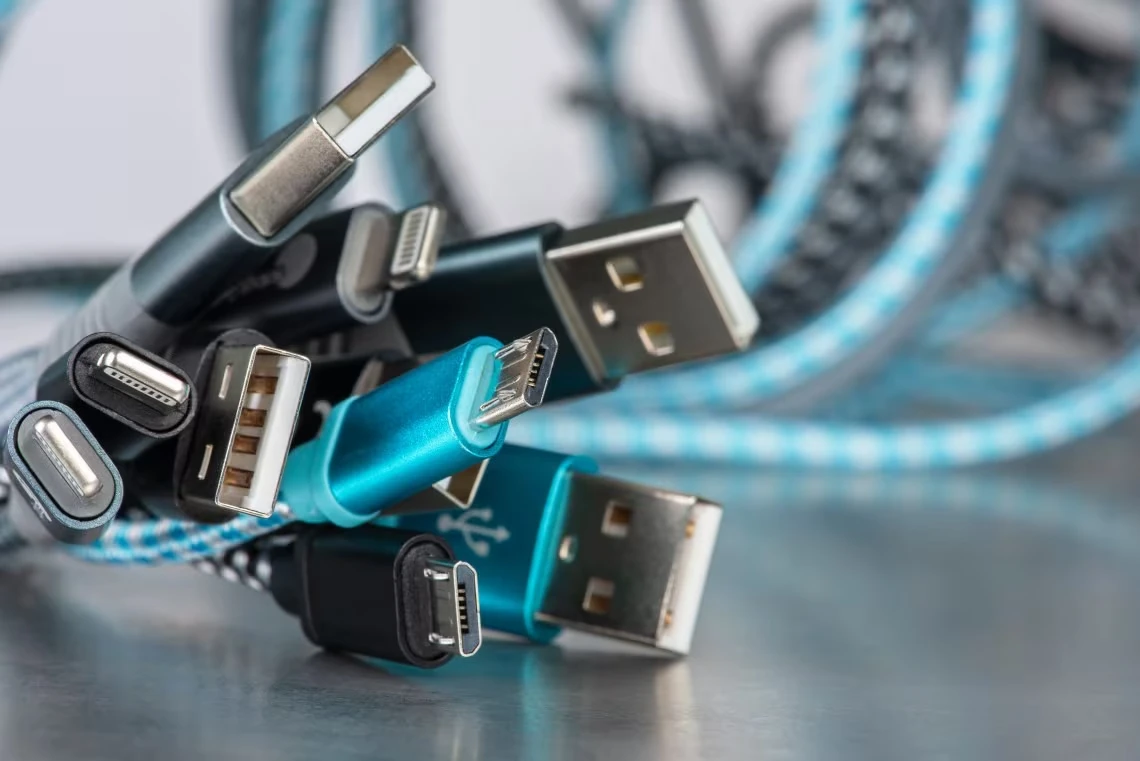
- Solution: Ensure your cable matches the standard of your device and port (e.g., use a blue-tipped usb 3 cable for SuperSpeed transfers). Inspect cables for any visible damage and replace them if they are compromised.
Category 2: Video and Display Problems (DisplayPort, DVI, etc.)
Video connection failures are immediately obvious and can manifest as a black screen, flickering, or poor image quality. These issues often stem from poor signal integrity or compatibility mismatches.
Symptom: No Signal or “Snow” on the Monitor
- Possible Cause 1: Inadequate Shielding. High-resolution video signals, especially those carried over a DisplayPort Cable, operate at very high frequencies. A poorly shielded cable can pick up interference from nearby power cords or electronics, corrupting the signal and causing a total loss of picture.
- Possible Cause 2: Cable Length. A digital video signal degrades over distance. A cheap, overly long monitor cable may not be able to maintain the signal integrity required for a 4K or high-refresh-rate display.
- Solution: Use the shortest cable practical for your setup. Invest in a high-quality, certified dp cable for monitor use, which guarantees proper shielding and construction to handle high-bandwidth signals.
Symptom: Flickering or Incorrect Colors
- Possible Cause 1: Loose Connection. This is particularly common with older standards that rely on a secure physical connection. A DVI Cable or a D-USB Cable (VGA) that is not fully screwed in can easily cause flickering or color shifting as the pins make intermittent contact.
- Possible Cause 2: Adapter Issues. Using adapters, such as an hdmi to displayport cable converter, introduces another potential point of failure. A low-quality adapter can fail to correctly translate the signal, leading to visual artifacts.
- Solution: Ensure all connections are firmly seated and that any locking screws are tightened. Whenever possible, use a direct cable (e.g., DisplayPort to DisplayPort) rather than relying on adapters.
Category 3: Network and LAN Connection Issues
A failed network connection can bring productivity to a halt. While many factors can cause network downtime, the physical LAN Cable is a frequent and often overlooked culprit.
Symptom: No Network Connectivity
- Possible Cause: Broken Locking Tab. The small plastic tab on an RJ45 connector is notoriously fragile. If it breaks, the ethernet cable will not seat securely in the port and can easily lose connection with the slightest movement.
- Solution: While a temporary fix can be attempted, the only reliable solution is to replace the cable. High-quality cables often feature a “snagless” boot design that protects this tab from breaking.
Symptom: Slow Network Speeds (e.g., 100 Mbps on a Gigabit Network)
- Possible Cause: Incorrect Cable Category. Gigabit Ethernet (1000 Mbps) requires at least a cat 5e ethernet cable. If you are using an older cat 5 cable, your connection will be limited to 100 Mbps. Similarly, for speeds beyond 1 Gbps, a cat 6 ethernet cable or higher is required.
- Solution: Check the printed text on the cable jacket to verify its category. Ensure the cable’s rating meets or exceeds the speed of your network hardware (router, switch, and computer).
Category 4: Industrial and Mission-Critical Failures
In an industrial environment, a cable failure is never a minor inconvenience—it is a critical event that can cause costly downtime, damage equipment, or create safety hazards. These failures are almost always due to the mismatch between a consumer-grade product and an industrial-grade environment.
Symptom: Intermittent Machine Stoppages or Sensor Errors
- Possible Cause 1: Vibration-Induced Disconnection. A standard friction-fit USB cable connected to a sensor or camera on a piece of vibrating machinery will inevitably work itself loose.
- Possible Cause 2: EMI Corruption. Using an unshielded cable in a factory with powerful motors and high-voltage equipment will lead to data corruption as electrical noise overwhelms the signal.
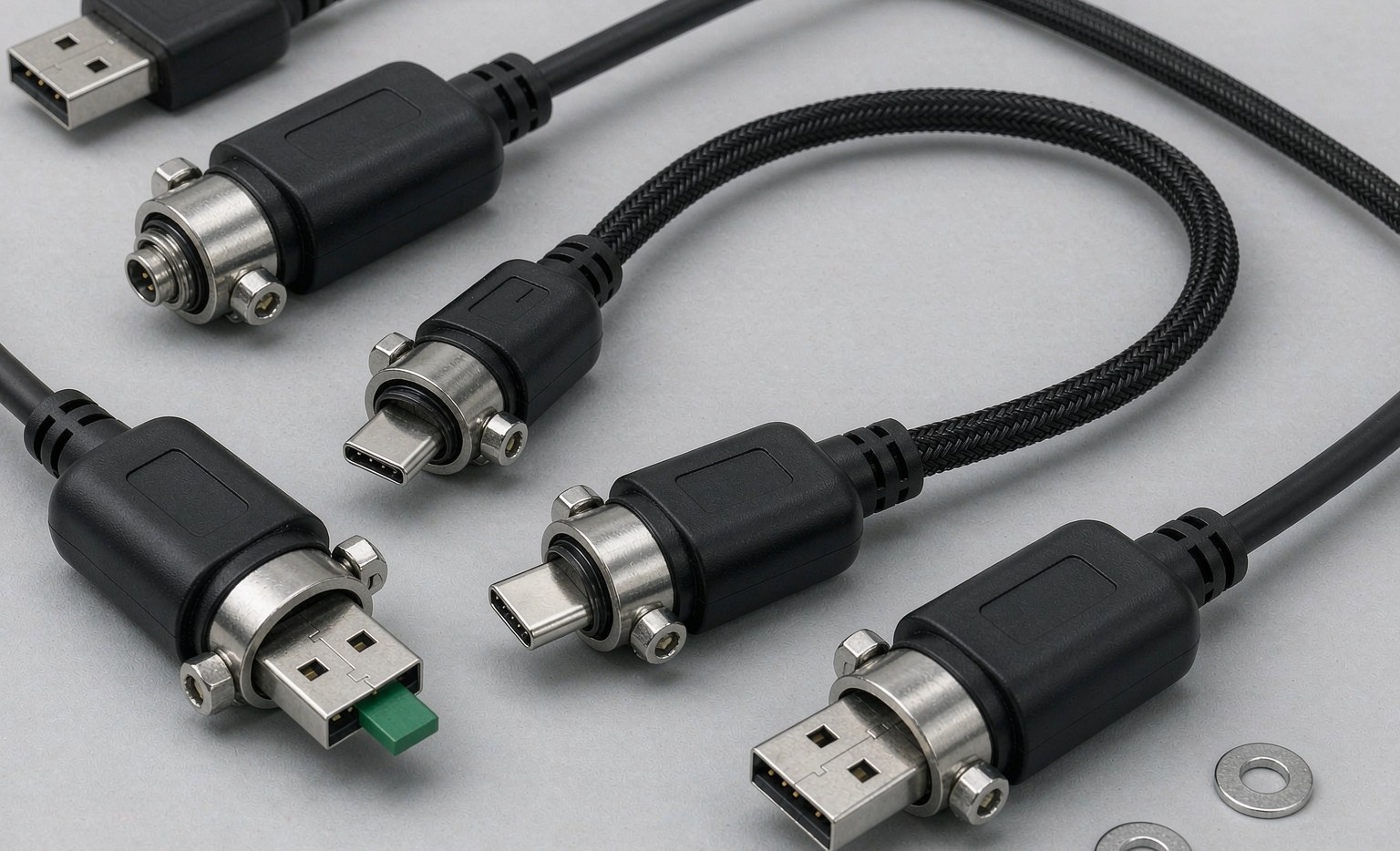
- Solution: This is a non-negotiable requirement for industrial-grade cabling. Use solutions like USB Cable locking connectors with thumbscrews. Specify an Industrial network cable with heavy-duty braid and foil shielding. The entire Wire Harness must be designed for the specific environmental stresses it will face.
The Root Cause: Why Quality Manufacturing is the Ultimate Solution
While the diagnostic steps above are useful for reactive troubleshooting, a pattern emerges: the vast majority of cable failures are a direct result of poor design and low-quality manufacturing. A cable is not a commodity; it is an engineered component. The choice of materials, the precision of the Cable Assembly process, and the rigor of the quality control all determine its performance and reliability.
This is where the Longkai Electronics advantage becomes clear. Since 2012, we have built our business on the principle of “Quality First, Integrity-Based.” We understand that preventing failure starts at the design stage.
- Superior Materials: We use high-purity copper, robust shielding, and application-appropriate jacketing to ensure our cables meet and exceed specifications.
- Precision Engineering: Our connectors are designed for durability, with features like gold plating for corrosion resistance and robust strain relief to prevent breakage.
- Certified Performance: Our commitment to quality is validated by international certifications like ISO9001, CE, and FCC. This assures our clients—which include over 100 leading brands like Samsung and CATL—that they are receiving a product engineered for reliability.
Conclusion: From Reactive Troubleshooting to Proactive Prevention
Troubleshooting a faulty cable is a necessary skill, but it is a reactive measure that consumes valuable time and resources. The ultimate solution is to shift to a proactive strategy focused on prevention. By understanding the common points of failure and recognizing the immense difference in quality between a standard and a premium cable, you can make informed purchasing decisions that eliminate these problems at their source. Investing in a well-engineered, properly certified cable from a trusted manufacturer is not an expense—it is an investment in uptime, performance, and peace of mind.